OpenPyXL 3.0.7
  • 教程
  • 简单用法
  • 性能
  • 优化模式
  • 插入和删除行和列,移动单元格范围
  • 操纵 Pandas 和 NumPy
  • 图表
  • 注释
  • 操控样式
  • 额外工作表特性
  • 条件格式化
  • 数据透视表
  • 打印设置
  • 使用过滤器和排序
  • 验证单元格
  • 定义名称
  • 工作表表格
  • 剖析公式
  • 日期和时间
  • 保护
  • 开发
  • openpyxl 包
  • 3.0.7 (2021-03-09)
  • 3.0.6 (2021-01-14)
  • 3.0.5 (2020-08-21)
  • 3.0.4 (2020-06-24)
  • 3.0.3 (2020-01-20)
  • 3.0.2 (2019-11-25)
  • 3.0.1 (2019-11-14)
  • 3.0.0 (2019-09-25)
  • 2.6.4 (2019-09-25)
  • 2.6.3 (2019-08-19)
  • 2.6.2 (2019-03-29)
  • 2.6.1 (2019-03-04)
  • 2.6.0 (2019-02-06)
  • 2.6.-b1 (2019-01-08)
  • 2.6-a1 (2018-11-21)
  • 2.5.14 (2019-01-23)
  • 2.5.13 (brown bag)
  • 2.5.12 (2018-11-29)
  • 2.5.11 (2018-11-21)
  • 2.5.10 (2018-11-13)
  • 2.5.9 (2018-10-19)
  • 2.5.8 (2018-09-25)
  • 2.5.7 (2018-09-13)
  • 2.5.6 (2018-08-30)
  • 2.5.5 (2018-08-04)
  • 2.5.4 (2018-06-07)
  • 2.5.3 (2018-04-18)
  • 2.5.2 (2018-04-06)
  • 2.5.1 (2018-03-12)
  • 2.5.0 (2018-01-24)
  • 2.5.0-b2 (2018-01-19)
  • 2.5.0-b1 (2017-10-19)
  • 2.5.0-a3 (2017-08-14)
  • 2.5.0-a2 (2017-06-25)
  • 2.5.0-a1 (2017-05-30)
  • 2.4.11 (2018-01-24)
  • 2.4.10 (2018-01-19)
  • 2.4.9 (2017-10-19)
  • 2.4.8 (2017-05-30)
  • 2.4.7 (2017-04-24)
  • 2.4.6 (2017-04-14)
  • 2.4.5 (2017-03-07)
  • 2.4.4 (2017-02-23)
  • 2.4.3 (未发行)
  • 2.4.2 (2017-01-31)
  • 2.4.1 (2016-11-23)
  • 2.4.0 (2016-09-15)
  • 2.4.0-b1 (2016-06-08)
  • 2.4.0-a1 (2016-04-11)
  • 2.3.5 (2016-04-11)
  • 2.3.4 (2016-03-16)
  • 2.3.3 (2016-01-18)
  • 2.3.2 (2015-12-07)
  • 2.3.1 (2015-11-20)
  • 2.3.0 (2015-10-20)
  • 2.3.0-b2 (2015-09-04)
  • 2.3.0-b1 (2015-06-29)
  • 2.2.6 (未发行)
  • 2.2.5 (2015-06-29)
  • 2.2.4 (2015-06-17)
  • 2.2.3 (2015-05-26)
  • 2.2.2 (2015-04-28)
  • 2.2.1 (2015-03-31)
  • 2.2.0 (2015-03-11)
  • 2.2.0-b1 (2015-02-18)
  • 2.1.5 (2015-02-18)
  • 2.1.4 (2014-12-16)
  • 2.1.3 (2014-12-09)
  • 2.1.2 (2014-10-23)
  • 2.1.1 (2014-10-08)
  • 2.1.0 (2014-09-21)
  • 2.0.5 (2014-08-08)
  • 2.0.4 (2014-06-25)
  • 2.0.3 (2014-05-22)
  • 2.0.2 (2014-05-13)
  • 2.0.1 (2014-05-13) brown bag
  • 2.0.0 (2014-05-13) brown bag
  • 1.8.6 (2014-05-05)
  • 1.8.5 (2014-03-25)
  • 1.8.4 (2014-02-25)
  • 1.8.3 (2014-02-09)
  • 1.8.2 (2014-01-17)
  • 1.8.1 (2014-01-14)
  • 1.8.0 (2014-01-08)
  • 1.7.0 (2013-10-31)
  • 条形图表和列图表

    In bar charts values are plotted as either horizontal bars or vertical columns.

    垂直、水平及堆叠条形图表

    注意

    The following settings affect the different chart types.

    Switch between vertical and horizontal bar charts by setting type to col or bar 分别。

    When using stacked charts the overlap needs to be set to 100.

    If bars are horizontal, x and y axes are reversed.
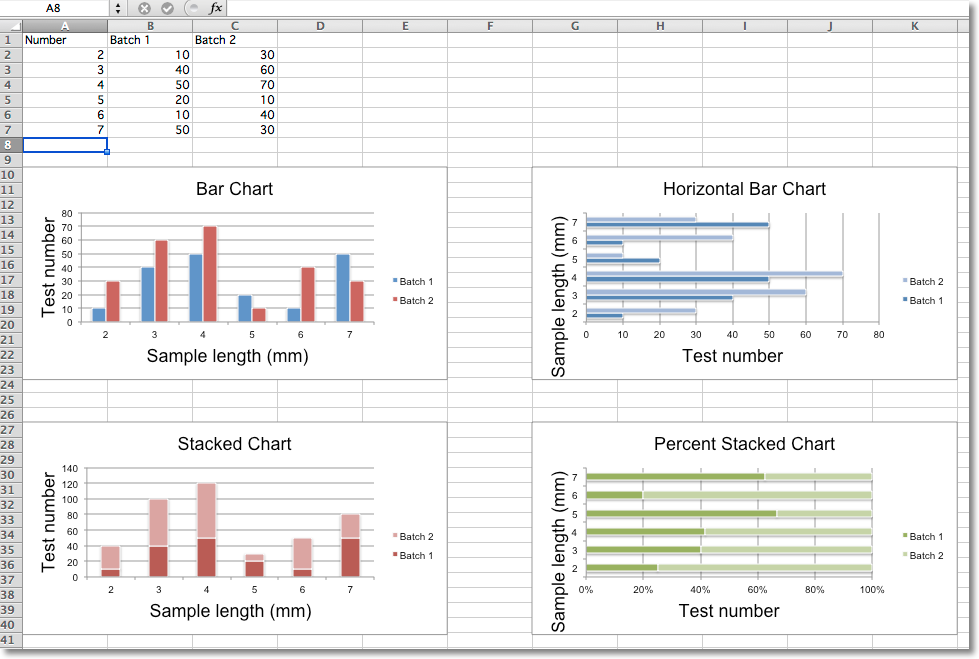
    "Sample bar charts"
    from openpyxl import Workbook
    from openpyxl.chart import BarChart, Series, Reference
    wb = Workbook(write_only=True)
    ws = wb.create_sheet()
    rows = [
        ('Number', 'Batch 1', 'Batch 2'),
        (2, 10, 30),
        (3, 40, 60),
        (4, 50, 70),
        (5, 20, 10),
        (6, 10, 40),
        (7, 50, 30),
    ]
    for row in rows:
        ws.append(row)
    chart1 = BarChart()
    chart1.type = "col"
    chart1.style = 10
    chart1.title = "Bar Chart"
    chart1.y_axis.title = 'Test number'
    chart1.x_axis.title = 'Sample length (mm)'
    data = Reference(ws, min_col=2, min_row=1, max_row=7, max_col=3)
    cats = Reference(ws, min_col=1, min_row=2, max_row=7)
    chart1.add_data(data, titles_from_data=True)
    chart1.set_categories(cats)
    chart1.shape = 4
    ws.add_chart(chart1, "A10")
    from copy import deepcopy
    chart2 = deepcopy(chart1)
    chart2.style = 11
    chart2.type = "bar"
    chart2.title = "Horizontal Bar Chart"
    ws.add_chart(chart2, "G10")
    chart3 = deepcopy(chart1)
    chart3.type = "col"
    chart3.style = 12
    chart3.grouping = "stacked"
    chart3.overlap = 100
    chart3.title = 'Stacked Chart'
    ws.add_chart(chart3, "A27")
    chart4 = deepcopy(chart1)
    chart4.type = "bar"
    chart4.style = 13
    chart4.grouping = "percentStacked"
    chart4.overlap = 100
    chart4.title = 'Percent Stacked Chart'
    ws.add_chart(chart4, "G27")
    wb.save("bar.xlsx")
    					

    This will produce four charts illustrating the various possibilities.

    3D 条形图表

    You can also create 3D bar charts

    from openpyxl import Workbook
    from openpyxl.chart import (
        Reference,
        Series,
        BarChart3D,
    )
    wb = Workbook()
    ws = wb.active
    rows = [
        (None, 2013, 2014),
        ("Apples", 5, 4),
        ("Oranges", 6, 2),
        ("Pears", 8, 3)
    ]
    for row in rows:
        ws.append(row)
    data = Reference(ws, min_col=2, min_row=1, max_col=3, max_row=4)
    titles = Reference(ws, min_col=1, min_row=2, max_row=4)
    chart = BarChart3D()
    chart.title = "3D Bar Chart"
    chart.add_data(data=data, titles_from_data=True)
    chart.set_categories(titles)
    ws.add_chart(chart, "E5")
    wb.save("bar3d.xlsx")
    					

    This produces a simple 3D bar chart
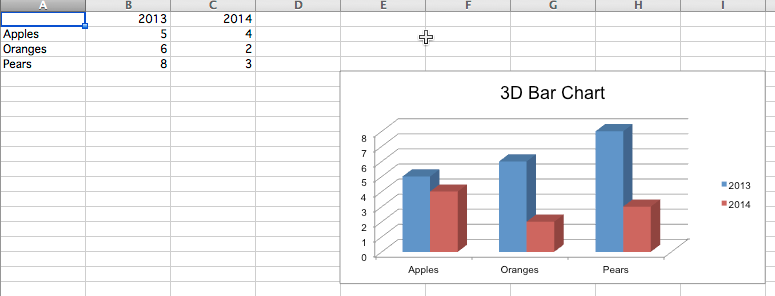
    "Sample 3D bar chart"
